Add or change a machine's photo
The photo is shown on the machine's card and on its record. You can pick it from your files or take it on the spot.
Step 1 : Open the machine editor
Tap the cog-shaped icon on the machine's card (see edit a machine).
Step 2 : Choose or take the photo
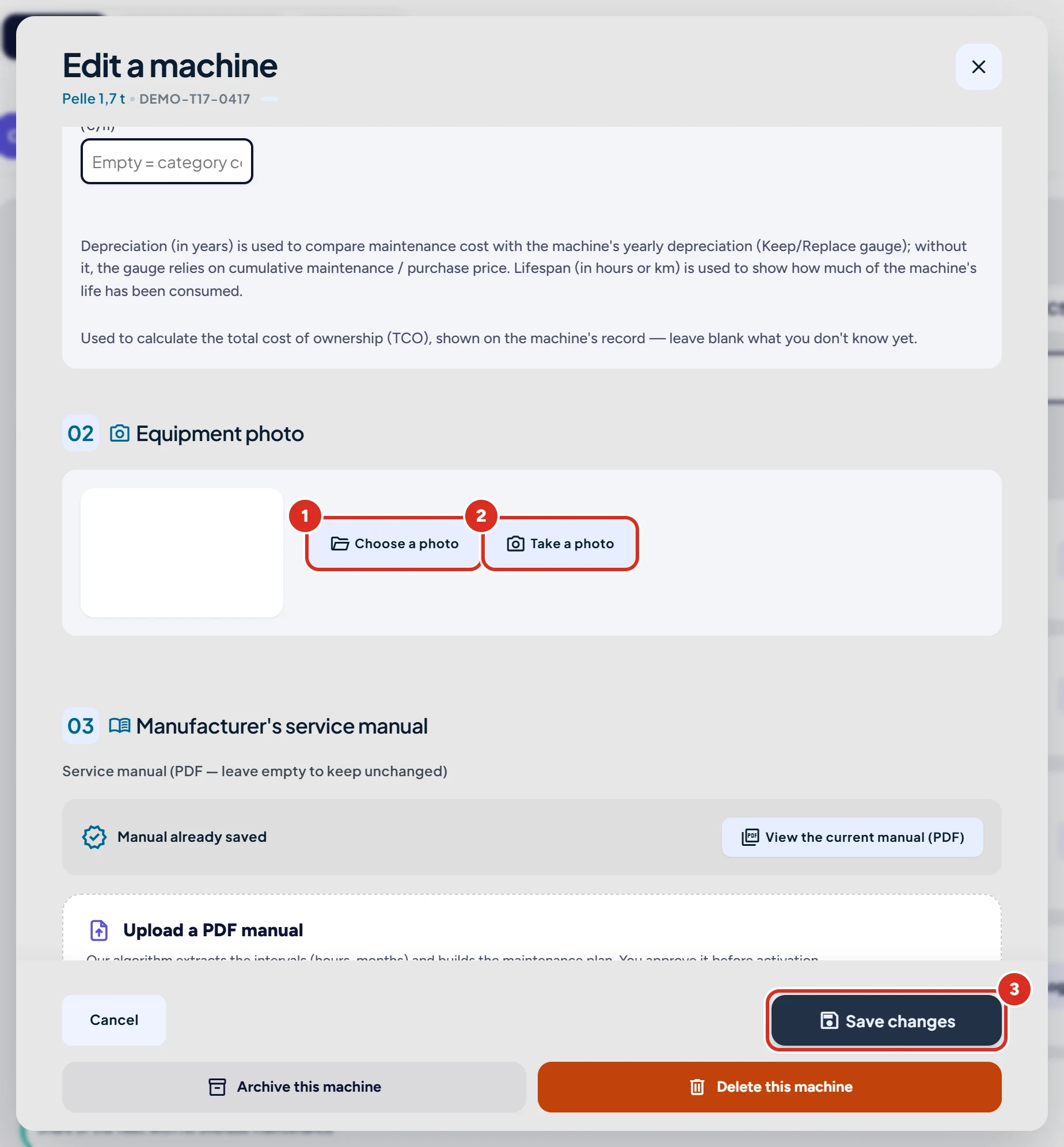
In the “Equipment photo” section, tap “Choose a photo” to pick a file from your device, or “Take a photo” to use the camera.
Step 3 : Save
Click “Save changes”.
Good to know
- A machine has a single photo: the new one replaces the old one when you save.
- The photo is reduced automatically before sending; JPEG, PNG and WebP formats are accepted.
- KALEA does not search the internet for a photo: the image always comes from you.
- Without a network, the photo is kept on the device, then sent when the network returns.
A question?
Can't find the answer? In the app, open “Help & support” and write to us: the team replies in the same screen. You can also email support@kalea.pro.